Stop a Mac asking Allow accessory to connect for every phone
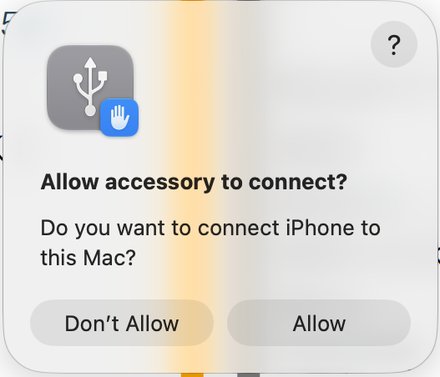
Newer Macs ask Allow accessory to connect? every time a phone is plugged in, and hold the phone back until someone clicks Allow. Set the Mac once to always allow, and it stops asking.
Screens from a MacBook Pro with macOS 27, November 2026. Other macOS versions can show the menus a little differently.
- The question the Mac asks
A phone is plugged in and the Mac shows Allow accessory to connect? “Do you want to connect iPhone to this Mac?” Allow lets that one phone through, but the Mac asks again for the next new phone. The steps below make it stop asking.
- Open the setting
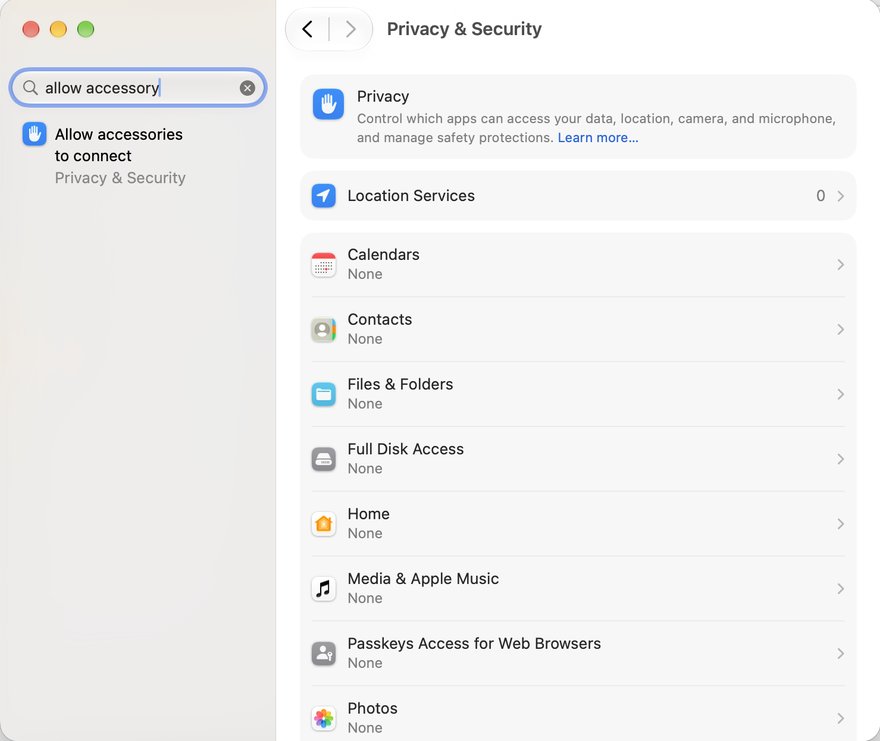
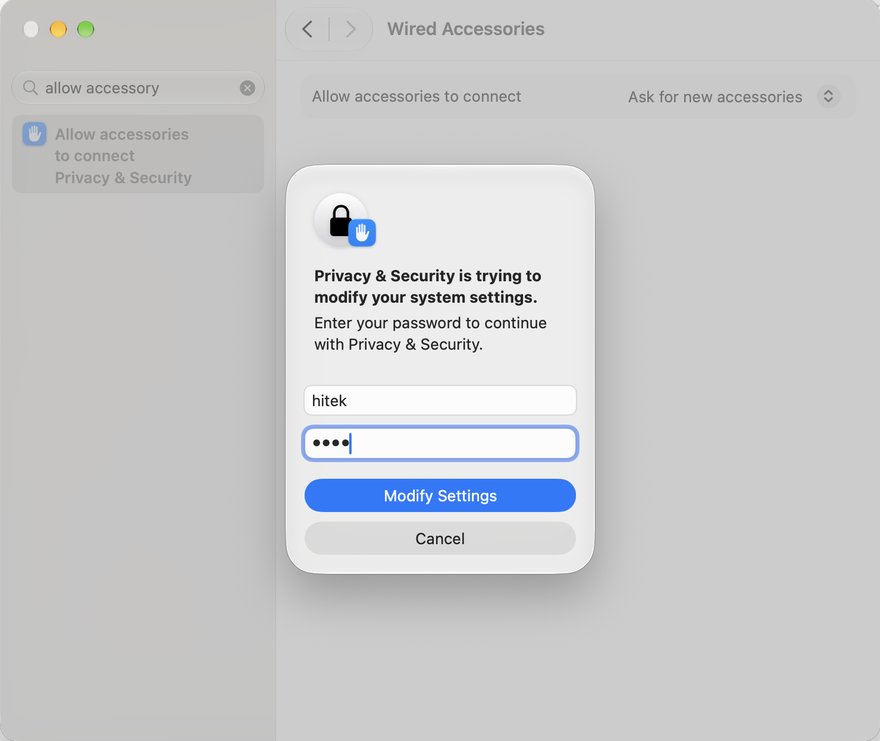
Open System Settings (Apple menu › System Settings). Type allow accessory in the search box at the top left and click Allow accessories to connect.
- Or find it by hand
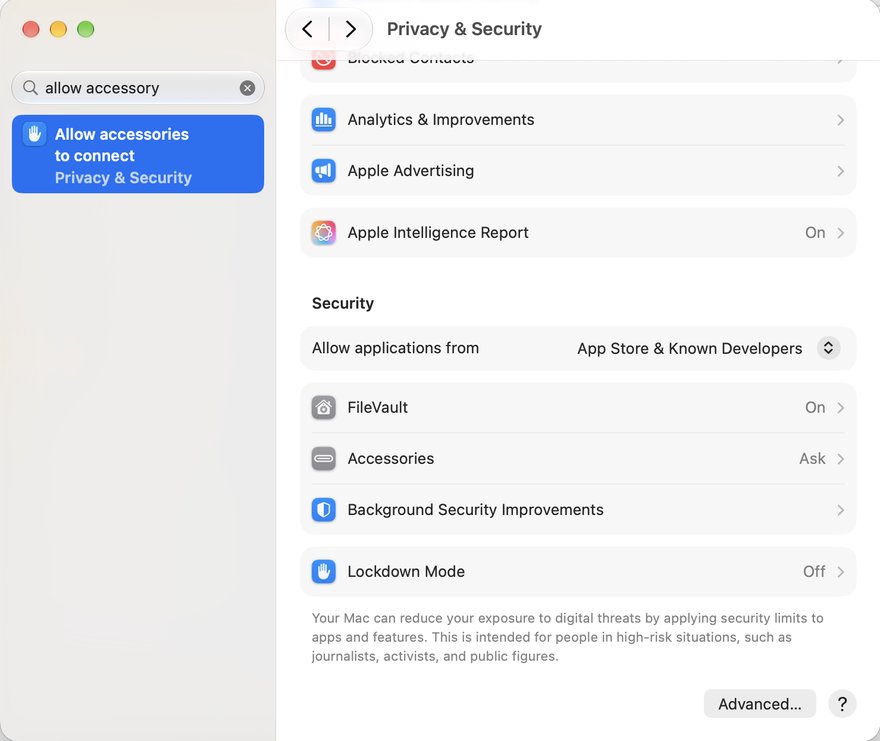
Click Privacy & Security, scroll down to Security and click Accessories.
- Choose Always allow
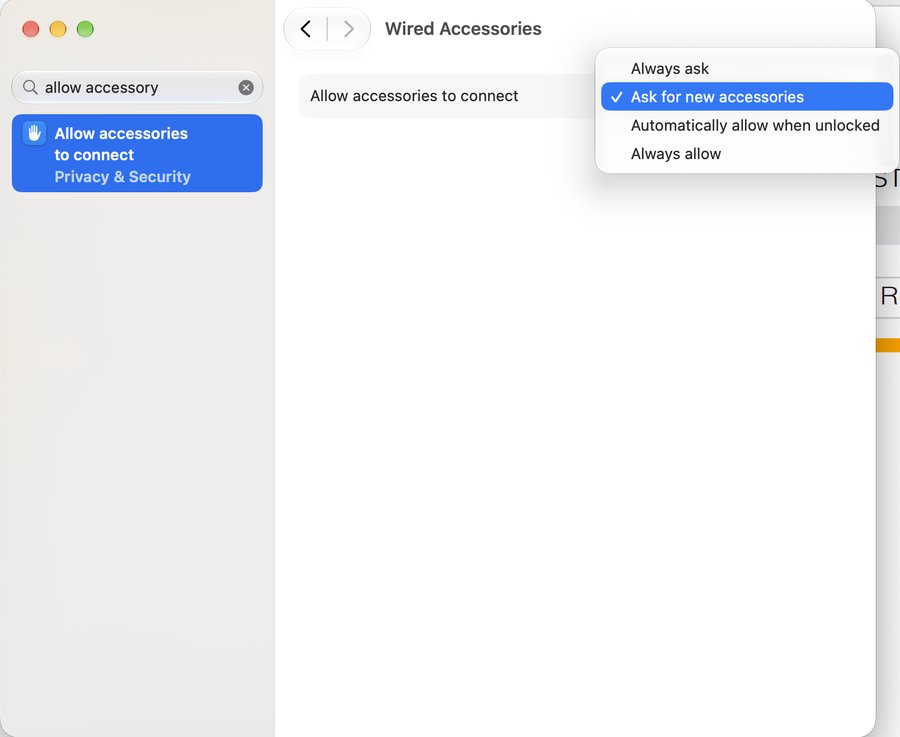
Next to Allow accessories to connect, choose Always allow.
- Type the Mac password
Type the password you use to log in to this Mac and click Modify Settings. From now on the Mac lets every phone through without asking.
What the tile says
| Tile | What to do |
|---|---|
| Please connect device | A phone is plugged in but the tile still says this: look on the Mac screen for Allow accessory to connect? and click Allow, then do the steps above so it does not ask again. |
Problems
- Can this be set from a distance, without someone at the Mac?
- No. macOS changes this setting only with the Mac’s password typed at the Mac itself. Do it once when you set up the station.
Still stuck?
Email us your machine SN (top-right of TestPod) and what the tile shows.